LINUX
Over the decades, I have used every version of Windows,
beginning with W3.11, most recently, W10 and W11.
W10 was problem free (a bit slow) running on my ancient Dell Optiplex 780,
it did everything I needed it to do.
Not much of a Microsoft fan, but it ran my software with no issues.
As you probably know, Microsoft is done with W10 and my ol' Dell is
way too old to upgrade to W11, even if I wanted to do that, which I don't.
My MacOS experience is about 30 years old, so I'm not familiar with recent releases.
Then, there's Google Chrome OS Flex, intended for use on old chromebooks.
I put it on a usb drive and following instructions, tried to install it on several chromebooks.
The original chrome os on the chromebooks could see it, but refused to let it boot up.
I'm not using W10 much anymore, since it "expired."
I turned off networking (internet),
so Microsoft is no longer bugging me to ditch the old Dell and buy a new W11 $$ computer.
If you decide to dual boot (see below), it is very important to turn off the internet on
Windows so malware can't get on your drive.
The few W10 programs (see below) I still use don't need internet access.
I have a newer Lenovo Think Centre that came with W11 on it, though I rarely use that Windows anymore.
I'm actually afraid to boot W11, without disconnecting the Ethernet cable from the router,
then let it boot and turn off networking.
Seems the recent W11 updates have problems and I just don't want Microsoft to access the Lenovo.
So, what OS am I using to type in this article? LINUX!
This ol' Dell is set up to dual boot W10 with Q4OS Plasma,
a Debian based distro I use every day.
Few people know that Linux runs on almost all of the
world's servers, supercomputers and data centers.
Only a few use Windows anymore.
Computer makers such as Dell, HP and Lenovo
are offering new PCs with Linux pre-installed.
If you order from Lenovo a PC with no Windows 11,
Ubuntu Linux pre-installed, you get a discount around $150.00
because you aren't paying for a Windows license.
You can also order a new computer with no OS installed.
Installing your favorite flavor of Linux is easy.
SpaceX uses Linux on the primary flight computers of both the Dragon
and its rockets (Falcon 9 and Starship).
Android and Linux are related to each other.
Perhaps you are curious about Linux or just looking to find some alternatives to Microsoft, Apple and Google.
I've been playing around with Linux for over 15 Years, so I have some interesting experiences to share.
FREE!
Linux has no trillion dollar company behind it!
99% of distros and app software is FREE.
No fees, no subscriptions, no "free" trials, no registrations with your email.
Linux and apps are Open Source, Windows, Apple and Google are closed source.
Complements of the thousands of people in many countries who write the code
because they enjoy creating an OS better than all the others
and give it to the world for free.
DISTRIBUTIONS DISTROS
Actually, there are many small organizations that produce what we call distributions or distros.
Most of these distros are based on the Linux kernel, originally written by Linus Torvalds back in the early 90s.
Coders from all over the world have contributed components to Linux over the years,
making constant improvements.
INSTALLATIONS
If you've ever installed Windows, remember the stressful process involved?
License keys, MS account creation or sign in, internet connection needed,
hardware compatibility tests, several reboot cycles and updates, etc.
What decades ago was considered to be difficult or only for techies and hackers, isn't anymore.
Installing Linux is far simpler than installing Windows.
Download a single file (on another computer), Copy it to a USB thumb drive,
Boot from it, work thru the installer, reboot and presto, you're done.
Internet access not required, but recommended.
More details below.
Linux has become a mature and polished OS that installs easily and just works great for over 95% of users.
MORE DISTROS
There are so many distros out there, making it a challenge to decide which one you want to try.
Some distros are specialized, while most are aimed at the typical user.
For example, I have installed Ubuntu Studio on the newer
Lenovo Think Centre as a dual boot with W11.
It has the latest greatest software for A/V creation all preinstalled.
Wonderful distro! I'm barely getting started on that.
This old Dell 780 is running the Q4OS with Plasma desktop installed alongside W10.
It's my daily driver. Never slow or laggy. I'm very happy with it.
INSTALLERS
Installers are one of the high points of most distros.
To install Linux, you first need to decide which distro you want to try out.
YouTube has plenty of videos about the various distros.
Helpful in deciding.
The installer will ask if you want to install alongside Windows, called dual boot.
You can choose to keep a more recent Windows or use the entire drive for Linux (way old Windows).
MORE DISTROS
Debian has been around since 1993 and some distros are based on it as well.
Debian is a nearly universal OS. It will run on a wide range of hardware,
ARM, PowerPC, Risk 5, MIPS and 7 more types of CPUs.
It can even run on SBCs like the Rasberry PI and
some smartphones, tablets, etc.
The Q4OS is based on Debian running on this old Dell.
Ubuntu (for the people) is very popular, many distros are based on it, adding new features.
It is super duper easy to install and ready to use on the 1st boot up.
Unlike Debian, it only runs on X86 64 bit machines, which are the vast majority of computers
out there in the real world. A few distros still support X86 32 bit CPUs, but that won't last much longer.
Linux Mint comes highly recommended for those who aim to dump Windows.
KUbuntu (KDE), Linux Mint 23 and Zorin OS 18 are really good choices for beginners to check out.
For example, there are 2 distros focused on Ham Radio,
Andy's and Dragon, both installed on the old Dell Optiplex 780.
All the distros I've tried have a nice assortment of preinstalled software.
It's easy to find and install additional apps.
INSTALLING
Once you have decided, do a regular search for it.
You'll wind up on the distro's website.
You can read about it's features and download the installer.
Check You Tube (YT) as well, there are plenty of videos about the various Distros.
DESKTOP ENVIRONMENT DE
Linux distros generally come with a preinstalled DE.
They are interchangeable so it's easy to try them.
The DE is the top layer of the OS that you interact with.
KDE Plasma is super popular. I'm using it on the old Dell 780 right now.
Other DEs are CINNAMON, MATE, GNOME, XFCE, TRINITY and a bunch more.
It is even possible to run a Linux DE on Android phones and tablets.
Look for downloads of the latest ISO file on their site.
After it has finished downloading, copy it to a USB drive or dvd using rufus.
Rufus magically makes the USB drive bootable.
Turn off your computer, insert the ISO drive, turn it back on, press F12 or 10 and boot from it.
DUAL BOOTING
Once it has booted from the USB drive, you can choose to wipe out
Windows (probably ok on an ancient W-95/98/XP machine),
run from the USB (very slow), does not change anything,
or the best choice, install alongside more recent Windows, called dual booting.
The next time you turn on your computer,
you'll quickly see a boot menu where you can choose Windows or Linux.
They are both on your hard drive. Couldn't be much simpler.
See the example boot menu at the bottom of this page.
On dual boot systems, one issue is where to store your writing, pictures, music, etc.
Both OSs have predefined folders for all your stuff.
If you save a file on Linux, Windows can't see it and vice-versa.
USB DATA DRIVE
The solution is a USB Drive that stays plugged in.
If you save your stuff on both Windows and Linux predefined folders,
simply copy them to the USB drive. If, heaven forbid,
you have to reinstall either OS, you won't lose anything.
A micro SD card is ideal, if your laptop computer has a socket for those little things.
Format it to NTFS, Fat32 or exFAT, Microsoft type file systems,
label it DATA and make some folders for your stuff.
My 15 year old Dell Optiplex 780, instead of a USB drive,
has an entire separate 250 GB internal HDD as a
safe place to store all sorts of files, pics, music, etc.
Works great for both Linux and Windows.
Linux can use all the Microsoft file systems (even very old ones from MS DOS)
but Windows can't read any Linux file systems,
which would have been simple enough to implement,
MS just wanted to ignore Linux file systems.
Go figure....
Both Linux and Windows can read and write to the thumb drive.
It's like a bridge between Windows and Linux.
Another alternative is cloud storage services. Some are free.
The downside is an internet connection is required.
The USB drive is always there when you are offline.
UPDATES
Updates are another high point in Linux.
Windows updates are simply awful.
Microsoft takes control of your system whether you want to update or not,
it takes a long time and reboots 2-3 times, pretty frustrating.
Here's an example:
About a year ago, during a W10 update that seemed normal on the Dell 780,
but it turned out to be a nasty one.
When I next booted W10, all the icons on the screen were scrunched up in the upper left corner,
piled on top of each other.
Along with changing some system settings that I didn't want changed.
Wasn't easy to fix.
It also similarly affected the Lenovo W11 computer which was on at the time.
Both are hardwired to the router, so somehow the W10
update communicated with the Lenovo screwing it up too,
even though it was running Windows 11.
Big hassle. Anyhow, see what I mean about Windows.
Linux updates are never forced.
The OS regularly checks and when updates are available,
you'll see a little red dot on the right side of the taskbar.
Clicking on it starts the update program.
Just click update all, put in your password and kick back & watch.
You'll see the list as it's working, something Windows doesn't do.
Windows only shows a more or less useless %
Most Windows updates require 2-3 reboots.
When finished, the update program displays
up to date and you're done.
Most updates are instantly effective.
Once in a while, you'll need to reboot.
Very unlike Windows, ALL the software on your
system updates automatically along with the OS!
With Windows Update, most of your programs,
both Microsoft and non MS programs need to be
updated manually, another MS hassle.
CROSS PLATFORM
Many Windows programs have a similar program written for Linux and the MacOS,
called cross platform.
For example, the very mature GIMP (GNU Image Manipulation Program),
Runs on Linux, Windows and MacOS,
does everything Adobe can do and more. I use it a lot.
Libre Office is cross platform and actually better than MS Office.
Finding and installing additional software not included in the distro is
super easy and there's a vast amount of well written apps out there.
Both GIMP and Libre Office are cross platform for all 3 OSs.
I'm not much of a gamer, but support for games written for Windows is there now.
Check out Wine Proton Valve and Steam.
OLD COMPUTER RESURRECTION
Linux can resurrect an old computer.
Install it, use it and you'll see an amazing transformation.
There are a few strip down distros (AntiX, MX and Q4OS) that work well on very
ancient computers that originally had MS-DOS, W95 or 98 on them.
Example below.
Most distros work plenty fast on old W7 or later computers.
Linux is naturally faster and perhaps best of all, it is FREE!
Most app software is also FREE!
Linux automatically manages memory (RAM) and keeps the hard drive clean and defragged.
Though antivirus programs are available on Linux,
they are rarely needed, Linux is very bulletproof.
You don't have to deal with this stuff.
PRINTER
My HP Envy 4520 all in one printer has no issues.
Linux detected it automatically using HPLIP.
The LIP stands for Linux Image and Printing.
HP engineers have written plenty of software for Linux.
ISSUES TO CONSIDER
Like Windows and MacOs, Linux has some issues you may want to consider.
Probably the worst is external hardware compatibility,
it's rare and usually fixable with drivers.
.
Being a HAM, I like the new Software Defined Radio programs.
You can tune into any frequency and mode.
I use an SDR Play RSP-2 interface, analog to digital.
It has 3 analog antenna inputs and connects to the old Dell computer using USB.
Super simple. My ex favorite program is SDR Console
which sees the RSP-2 just fine under Windows 10.
Works great.
Unfortunately, SDR Console is Windows only,
no Linux or MacOs version of this fav program.
There are 5 SDR programs written for Linux, easy to find and install.
I've tried them all.
So far, only 3 of them, CUBICSDR and GQRX see the RSP-2,
both programs work well on multiple computers that I've tested.
SDRPlay has released a new program called SDRCONNECT, written for Linux,
supports most of their interfaces including my no longer made RSP-2.
I just installed it on the old Dell Q4OS computer,
as a replacement for SDR Console, I'm very happy with it.
So, I'll still be using W10 when I want to run SDR Console,
but will be using SDRCONNECT much more as I get used to it.
Another example, I have a PSG-9080 signal generator
that connects to the old Dell computer using USB.
It has a program that controls the generator.
It's a program written for Windows.
I haven't tried to install it on Linux just yet.
So it's W10 for that one until I get it working on Linux.
Linux has a program called WINE, a compatibility layer.
It is possible to install some programs written for Windows using WINE.
I will eventually try that, see if I can get it working.
TERMINAL
Then there's the dreaded TERMINAL (also called bash or shell).
Long ago, using the Terminal was needed for some aspects of Linux.
Some people are intimidated by it, but these daze, it's much easier.
You don't have to be a programmer or hacker to use it.
Modern distros can be used without ever needing to use the Terminal,
as everything is graphical and very easy now.
Once again, look to YT for videos about the Terminal.
EXAMPLE CHROMEBOOK INSTALL
Below is an example of what Linux can do for seriously old, low spec computers.
About a decade ago, I wasted some money on a used Google Chromebook.
Google stopped supporting it in 2017, so it has sat on the shelf for years.
Then, I recently discovered mrchromebox from a YT video.
Linux on an ancient Chromebook?
Intrigued, I read all the content of his website and watched several YT videos about how to do it.
It's not simple!
Chromebooks have the chrome OS locked down,
both hardware and software are protected from any attempt to change anything.
It won't let you boot from the USB ports.
I even tried the Google Chrome OS Flex, which is supposed to work on old chromebooks.
This should have been easy, but no such luck. Darn Gaggle.
MRCHROMEBOX
Mrchromebox is a genius for figuring out how to get rid of Chrome OS.
Using mrchromebox requires some knowledge of the terminal.
You have to type in and run a complex script.
If you got it right (took me 3 tries),
running the script erases Chrome OS
and replaces it with his firmware.
See the pictures below.
Now, when you turn on the chromebook, you'll see a jackrabbit, it's called coreboot, then a boot menu appears.
If you have a USB drive with a Linux distro on it, the menu will show that drive.
Selecting it will boot from it, after a few minutes, the distro's installer loads.
Follow the step by step instructions and you"ll have
Linux on that previously useless 15 year old chromebook.
Actually, coreboot can install other OSs including Windows on newer
Chromebooks with higher frequency CPUs, more RAM and SSD space.
Even way older versions (like XP?) of Windows will overwhelm an old Chromebook like mine.
My Old Lenovo Chromebook has an Intel Celeron core 2 CPU, 4 GB RAM and 16 GB SSD.
By today's standards, that is a really puny system.
However, it's a real computer with an Intel CPU
and totally supported by mrchromebox firmware and Linux.
I did some research, looking for a distro light enough to run usefully on such a limited system.
Came up with the Q4OS. It comes in 2 versions,
Trinity or Plasma Desktop Environment (DE).
Linux distros generally come with a preinstalled DE,
but you can easily change to a different one.
The installer lets you choose the DE as it's installing.
You directly interact with that top layer (DE). Like distros, there are about 10 DEs.
Q4OS comes with a very light one called Trinity,
which is the one I installed on the Lenovo XChromebook (now called a Trinbook).
Big surprise, everything works as expected. No problems at all with that little thing.
I even got SDR (Software Defined Radio) working, installed Cubic SDR,
plugged in the RTL-SDR interface and it works just fine on such a puny system.
SDR software is CPU intensive, Cubic SDR pushes the little Intel 2 core CPU to the max,
but it works well with very rare dropouts.
See RTL-SDR pic below.
On this ancient Dell 780, Intel quad core CPU @ 2.3 GHz,
3 HDDs total 1.5 TB storage, 8 GB RAM.
Though it was made some 16 years ago,
it's still a pretty powerful system and I've upgraded it several times.
When I installed Q4OS, I chose the Plasma DE, runs just fine.
I'll probably still be using this system for the foreseeable future.
Plasma uses a lot more system resources than Trinity.
Not meant for old Chromebooks or other very old computers, as it completely overwhelms them.
Plasma is very advanced and it can be easily customized for your preferences.
Plasma will work with most distros,
if the distro doesn't already install it by default,
as it's very popular. I really like Plasma.
So that wraps up my Linux experiences. Should you try it?
Yes, if you install it alongside Windows (probably XP or newer),
you'll still have Windows which, for me, made the transition much smoother.
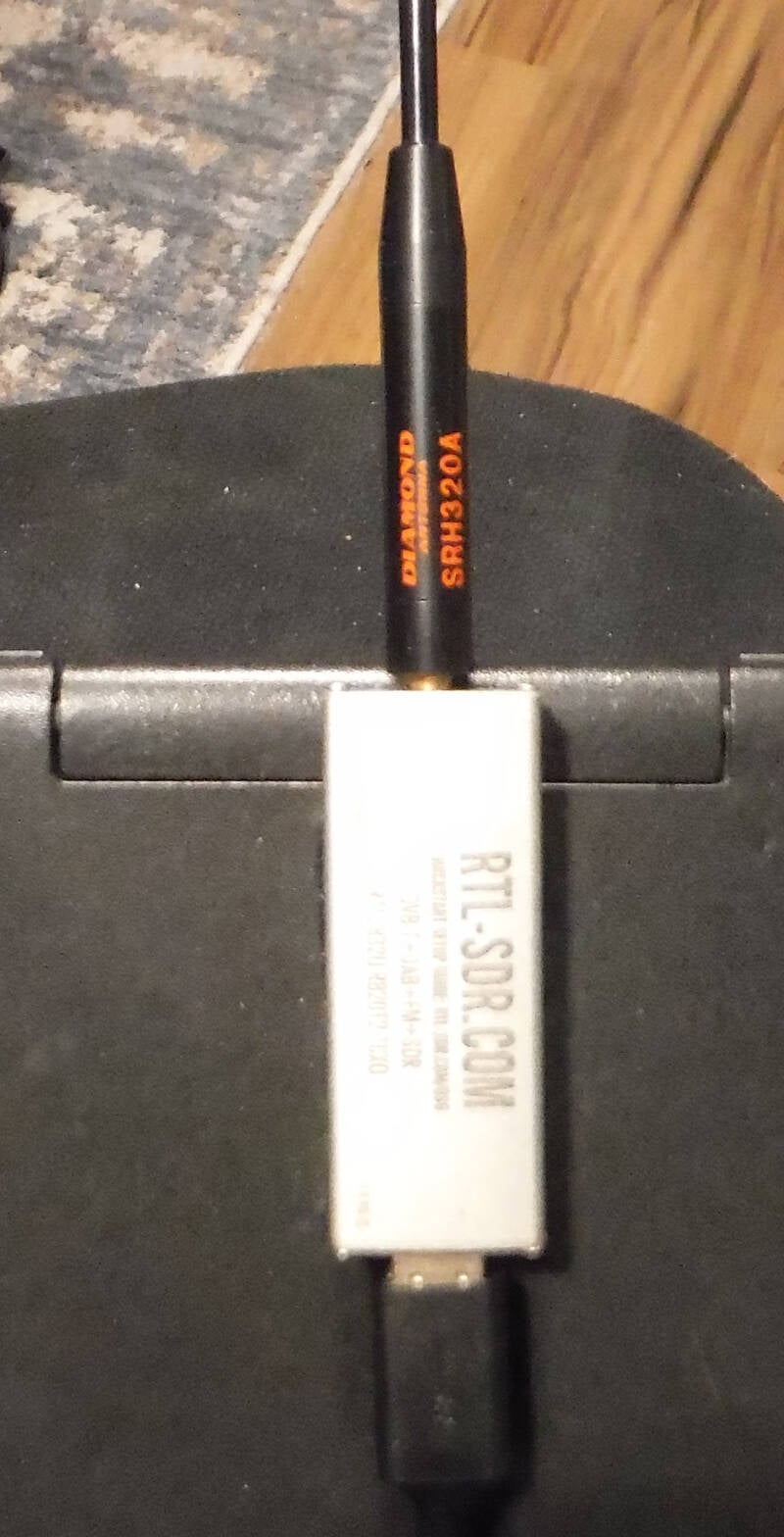
The RTL-SDR interface. This is the original, made over 10 years ago.
It is attached to the back of the Linbook with Diamond antenna.
Works just fine with Q4OS and CubicSDR.
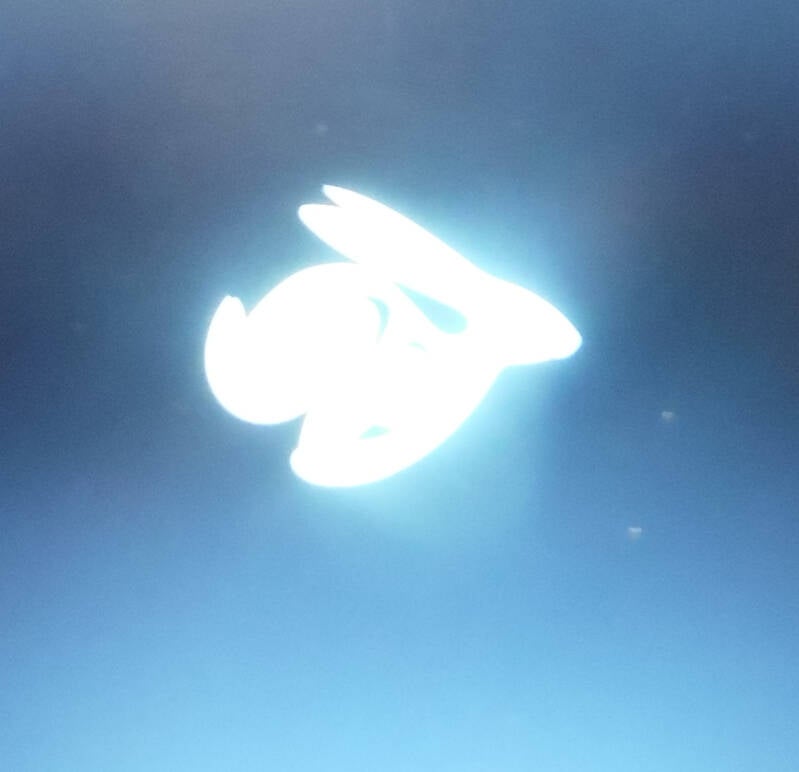
Mrchromebox coreboot jackrabbit. Lets you boot anything from a USB thumb drive.
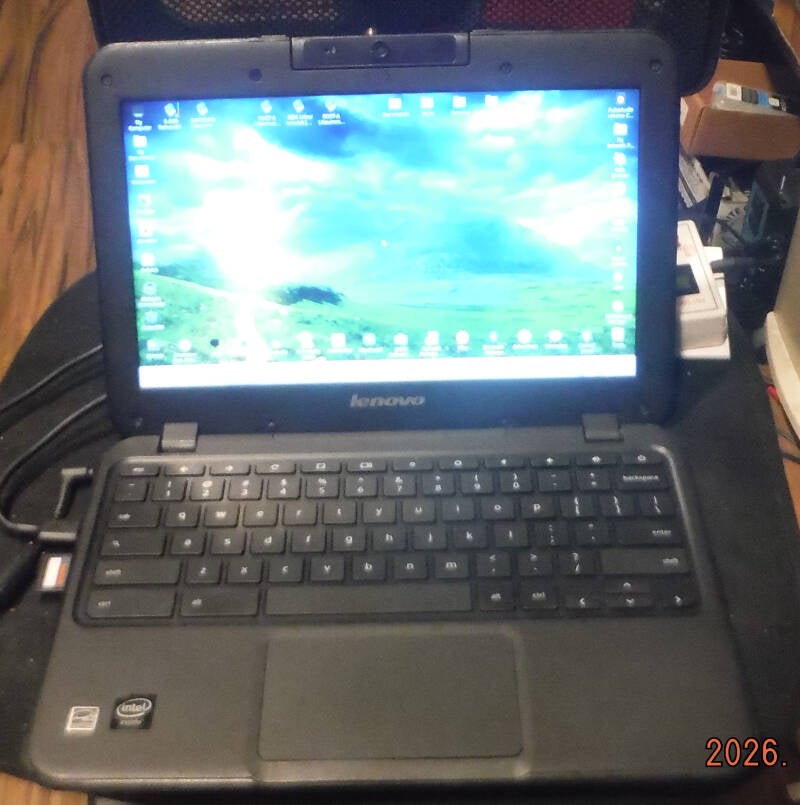
The Lenovo XChromebook, running Q4OS with Trinity DE. I now call it a Trinbook.
The white & red thing on the left is a SD card that is a copy of the DATA drive on the Dell 780.
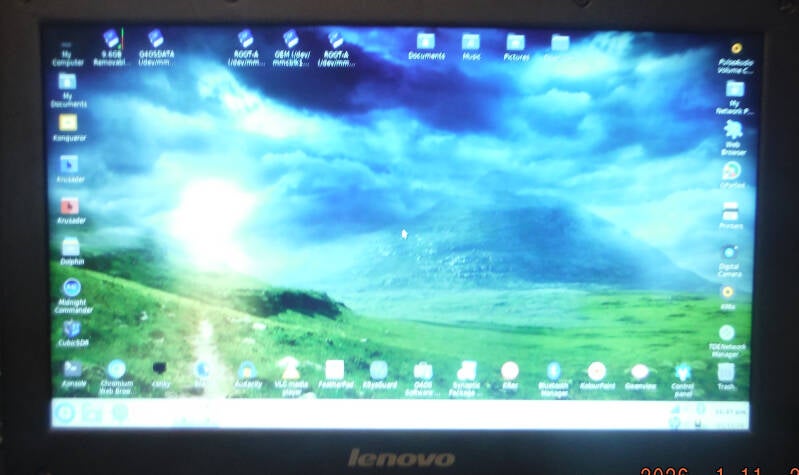
This is what the Q4OS Trinity DE looks like.
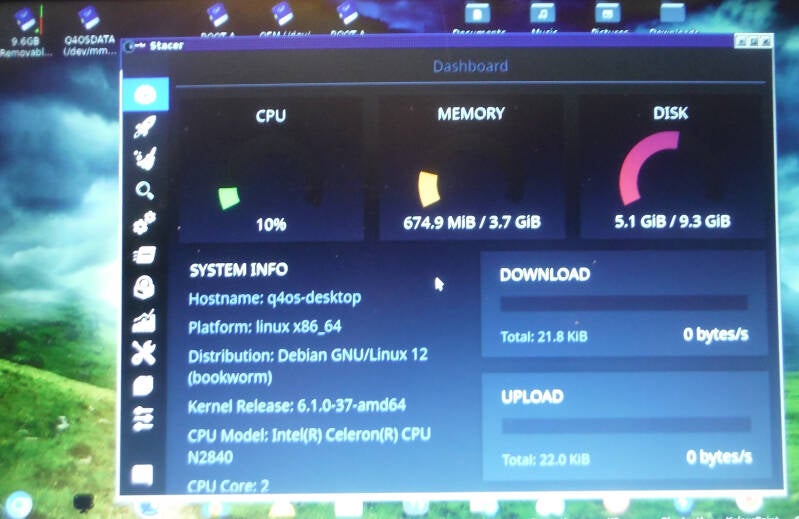
This program, Stacer, shows the Trinbook's system resources.
It uses less than 700 MB RAM, 3 GB free. The SSD has about
5 GB used, 4.3 GB free. plenty of room to install additional software.
Light on the CPU. Plenty fast, no lagging.
Pretty amazing for such minimal hardware.
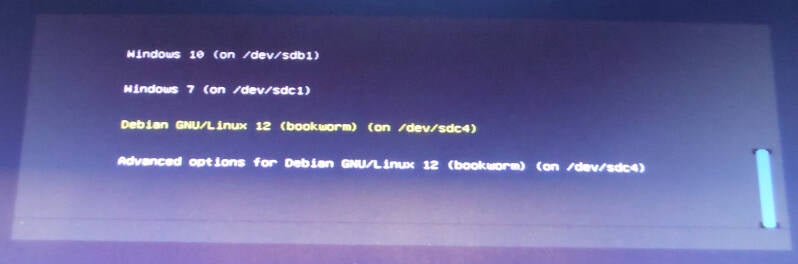
This pic shows what a dual boot menu looks like.
It uses a program called Grub2 that loads right
after the system BIOS (Basic Input Output System),
takes about 4 seconds from power on.